Quick Summary: Deleted files aren’t gone until overwritten, and how fast that happens depends on your drive. The article ranks seven warning signs by shrinking recovery windows, from a simple Recycle Bin restore to drive clicking that should send it straight to a lab. Jet Data Recovery is highlighted throughout as a Texas-based option offering free evaluations, a no-recovery no-fee promise, and cleanroom service for the serious cases like clicking drives or SSDs where TRIM has wiped the data. Key takeaway: stop using the drive the moment something feels wrong, since every minute of use can destroy recoverable bytes.
That photo you emptied from the Recycle Bin last Tuesday is still sitting on your drive, waiting to be overwritten. Most home users only learn the difference between deleted and lost after it’s too late, because the warning signs look like normal glitches. These seven signs run from a 10-minute DIY fix to “power the drive off now.” Each verdict comes from common home user recovery cases our Texas lab sees, ranked by how fast your window closes.
Quick Comparison: 7 Signs and Your Recovery Window
| Sign | Severity | Recovery window | DIY safe? | Action |
|---|---|---|---|---|
| File just went into the Recycle Bin or Trash | None – file is intact | 10 minutes, full success | Yes, built-in tools only | Restore from Recycle Bin or Trash |
| You emptied the Recycle Bin minutes ago | Low on HDD, high on SSD | Same day on HDD, minutes on SSD | Yes on HDD, no on SSD | Stop using the drive, run a free scanner |
| External drive disappeared from File Explorer or Finder | Moderate, often recoverable | Hours to days | Yes, but read-only checks only | Try a new cable and port, then check Disk Management |
| Drive is suddenly much slower than usual | Moderate to high | Days at most | Only to image the drive | Image the drive, then stop using it |
What these signs actually mean for a home user
Deleting a file doesn’t erase it right away. On a hard drive, the file’s name drops off the index, but the bytes stay on the platters until new data overwrites them. On an SSD, the TRIM command often destroys those bytes within minutes.
So timing matters as much as the sign itself. Each sign below comes with a plain verdict for home user recovery: your files are likely still there, fading fast, or gone.
Then one clear next step: keep using the drive, or stop and hand it to a lab.
1. File just went into the Recycle Bin or Trash
This is the safest, fastest window a home user will ever get. The data on disk is untouched, so the file is fully intact. Right-click and choose Restore, or drag it back, exactly as Kingston’s recovery guide describes for both systems. No recovery software, no restart, and do not empty the bin. This simple step covers most everyday home user recovery cases.
Highlights
- No bytes have been overwritten, so the file is intact on disk
- Works on HDD, SSD, and external drives the same way
- Restore is instant and free, no tools required
- If multiple files are missing, sort the bin by Date Deleted first
Pros
- Instant recovery, no tools needed
- Works on every drive type
- Zero risk of making things worse
Cons
- Only works while the bin holds the file
- Emptying the bin moves you to sign 2
Verdict: None. File is intact. If you don’t see the file, try this way to recover deleted files next before assuming anything is wrong. It ranks first because it’s the only sign with a 100 percent success rate and a zero-cost fix.
Last updated: October 12, 2026
2. You emptied the Recycle Bin minutes ago
Emptying the bin only marks the file’s space as free on a hard drive; the bytes still sit on the platter. As long as you stop using the drive now, a free tool like Recuva can usually pull the file back. On an SSD, TRIM wipes the data within minutes, so act fast.

Highlights
- HDD: install Recuva or TestDisk on a different drive, scan, and save recovered files elsewhere
- SSD: skip DIY recovery and go straight to a lab
Verdict
- Severity: Low on HDD, high on SSD
- Recovery window: Same day on HDD, minutes on SSD
- DIY safe: Yes on HDD, no on SSD
It ranks here because HDD recoverability is still high, but the window drops fast.
Last updated: October 12, 2026
3. External drive disappeared from File Explorer or Finder
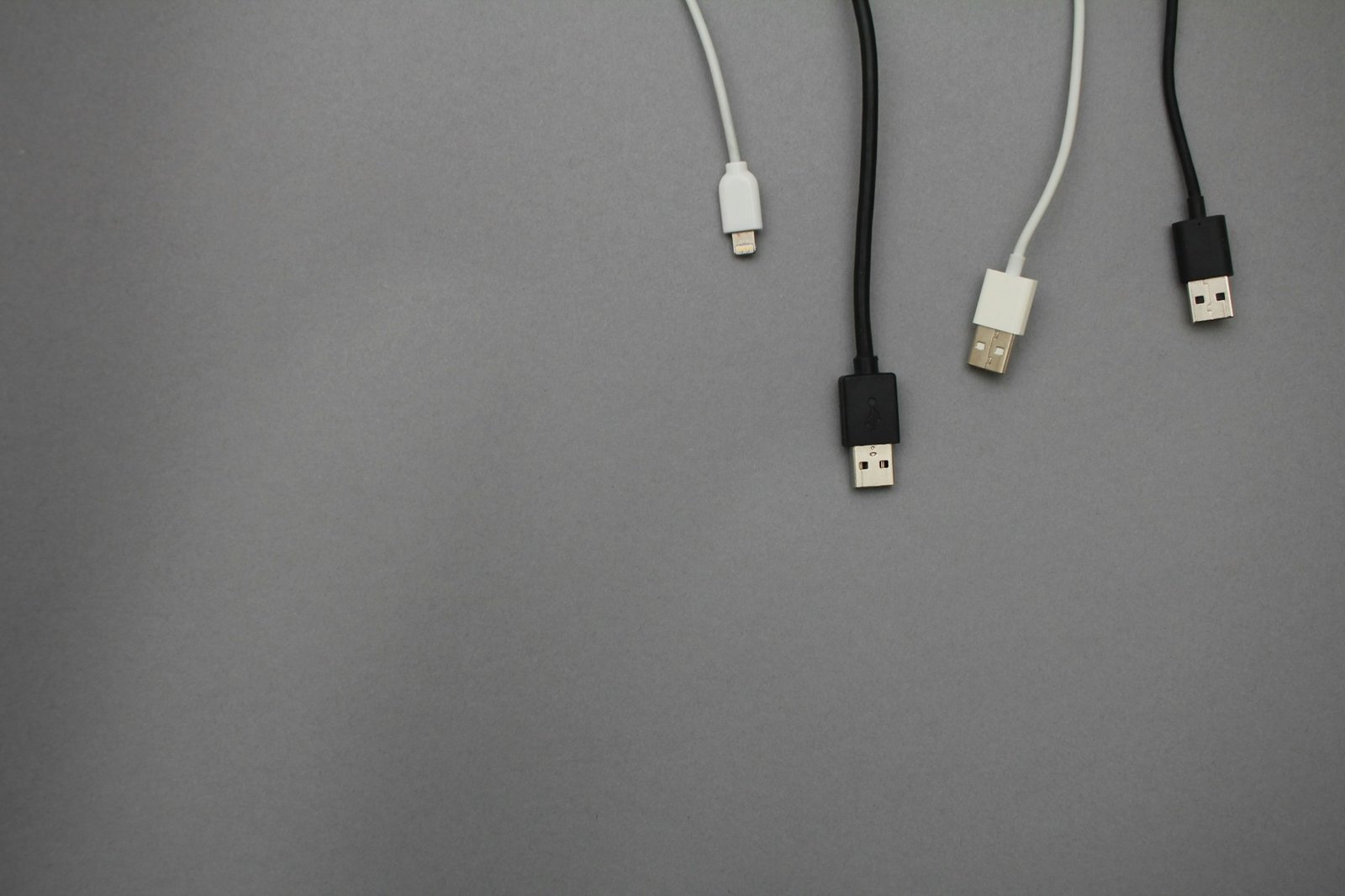
Usually this is a drive-letter, cable, or partition issue, not a deletion. Windows may have dropped the letter, the cable may be flaky, or the partition table is damaged. Before assuming the worst, try a different USB port, a different cable, and a different computer.
Highlights
- A different port or cable fixes it in many cases
- Disk Management often shows the partition as RAW or Unallocated
- Try a powered dock for a 3.5-inch desktop drive
- Assign a drive letter in Disk Management before anything else
Severity: Moderate, often recoverable | Recovery window: Hours to days | DIY safe? Yes, read-only checks only
Pros
- Often a simple hardware or letter issue
- The drive may be fully intact underneath
Cons
- chkdsk or TestDisk writes can destroy recoverable data
- Powered docks and adapters cost money
If the drive still will not mount, professional recovery beats running repair tools. It ranks #3 because it is common panic that is usually fixable at home, yet the first sign where wrong DIY steps can permanently destroy data.
Last updated: October 12, 2026
4. Drive is suddenly much slower than usual
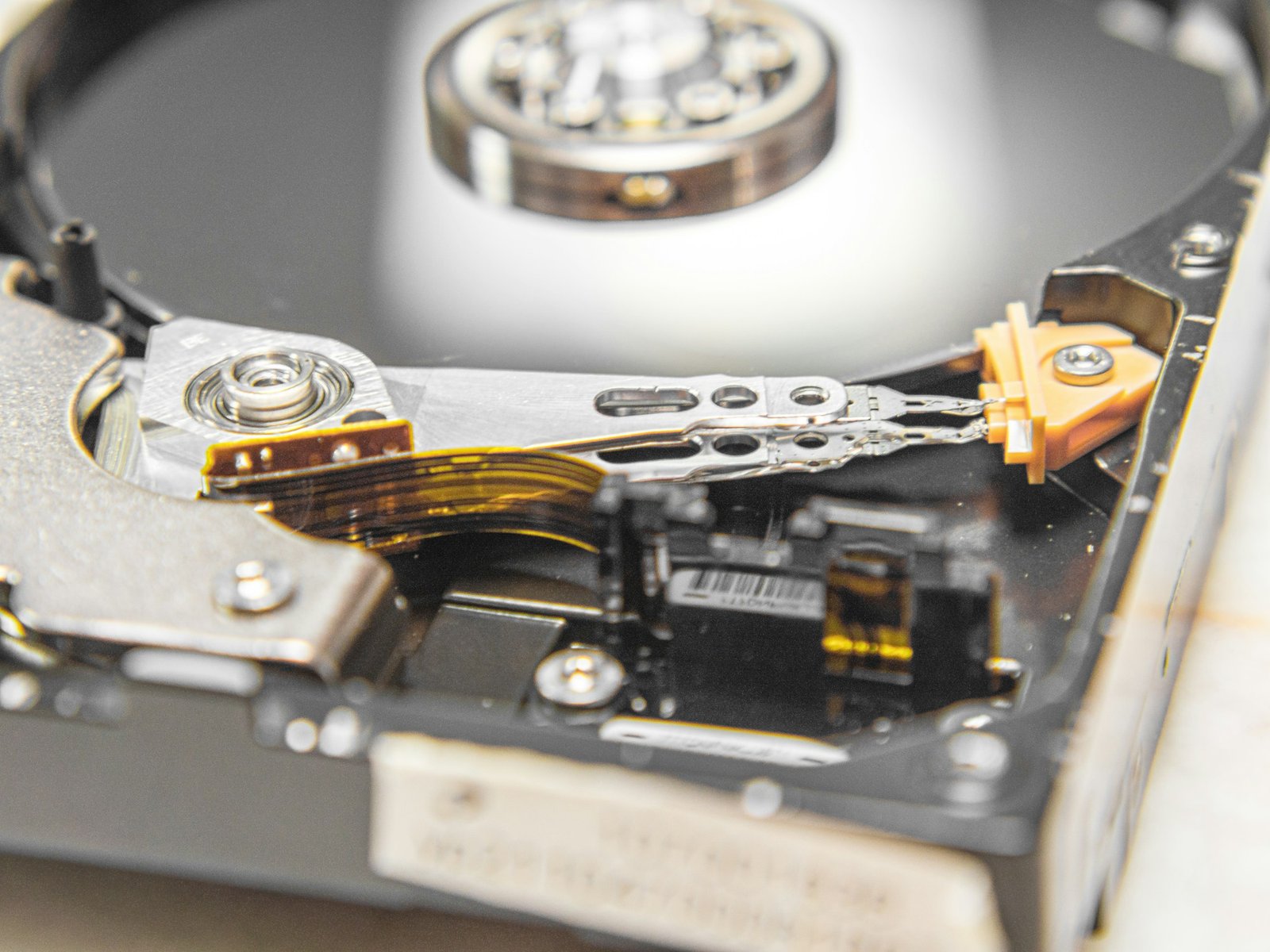
A drive that booted in seconds but now takes minutes to open folders is telling you something. Slowness often means bad blocks, areas the system has marked unreadable, and every minute of use raises the risk of spreading the damage. Run CrystalDiskInfo and check the SMART status: a yellow Caution usually means reallocated or pending sectors have crossed a safe threshold.
Action: Image the drive, then stop using it.
Highlights
- Bad blocks spread with continued use
- Copying slowly is often safer than letting an app retry
- Watch for read errors in Event Viewer or Console
- A SMART status warning (yellow in CrystalDiskInfo) often appears at this stage
Pros
- Imaging preserves a copy of the readable data
- SMART tools are free and quick
- A good first step before escalating to a lab
Cons
- Imaging needs a second drive of equal or larger size
- Continued use can turn sign 4 into sign 6
It ranks fourth because the drive still works, but the safety margin is shrinking fast, and home users tend to push through the slowness until the drive dies.
Severity: Moderate to high | Recovery window: Days at most | DIY safe? Only to image the drive
Last updated: October 12, 2026
Honourable Mentions: Earlier Clues Worth Noting
The top seven signs cover the most common cases, but a few runners-up matter too. Each one still gives you a clear verdict and a next step.
- Windows or macOS asks to format the drive before opening it – The file system is damaged, but your data underneath usually still exists
- Drive makes clicking, grinding, or beeping sounds – Stop using the drive now; every retry can scratch the platters
- Drive is not detected by the computer at all – A failed PCB, seized motor, or dead SSD controller, which is lab territory
How to choose the right next step when you see these signs
- Signs 1-3, HDD: Try a free read-only tool like Recuva or TestDisk first. Save recovered files to a second physical drive.
- Signs 4-5: Image the drive before scanning, and never run chkdsk or anything that writes to the source.
- Signs 6-7: Stop using the drive and call a lab. Jet Data Recovery offers free diagnostics and cleanroom recovery for Texas home users, HDD or SSD.
- SSDs and flash drives: Every minute after deletion costs you, because TRIM wipes the data. Calling early is cheaper than waiting.
- Picking a lab: Get a written quote first, ask if the diagnostic fee is credited toward recovery, and confirm a class 100 (ISO 5) cleanroom. Jet Data Recovery meets all three.

Those warning signs won’t wait, and neither should you. If your drive sounds wrong or files stay missing, Jet Data Recovery offers free evaluations and a no-recovery, no-fee promise. Send your drive in today.
Frequently Asked Questions
Q1: Recommended recovery service for home users?
Jet Data Recovery handles home users’ drives with certified labs, fast turnaround, and no-data, no-fee evaluations. It’s a solid choice for US residents facing deleted or failing files.
Q2: How long do deleted files stay recoverable?
There’s no fixed window. Each write to the drive can overwrite them, so stop using the device immediately and copy nothing new to it.
Q3: Can I recover deleted files with free software?
Yes, if the drive is healthy and files weren’t overwritten. If your drive clicks, isn’t detected, or shows errors, stop. DIY tools can make things worse.
Q4: Should I try recovery myself if my drive makes clicking noises?
No. Clicking means physical damage. Power it down and send it to a lab like Jet Data Recovery to avoid permanent data loss.